Models Overview
Docket supports multiple AI models from different sources.
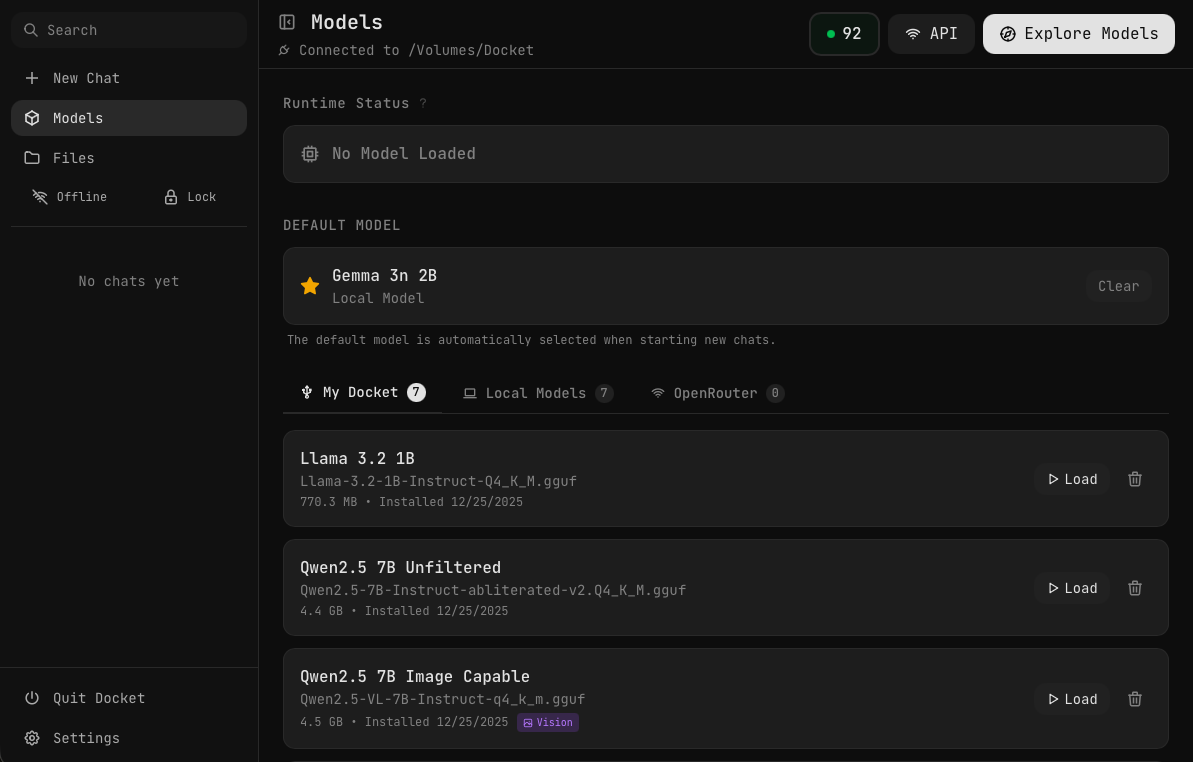
Model Sources
My Docket (USB Drive Models)
Models stored on your Docket USB drive. These include:
- Pre-installed models — Ready to use out of the box
- Downloaded models — Models you've added from Hugging Face
Pros:
- Work completely offline
- Portable — take them anywhere
- Private — data never leaves your device
Local Models (Host Machine)
Models stored on your computer's hard drive (not on the Docket USB).
Pros:
- No USB storage space used
- Faster loading from SSD
- Can use models larger than USB capacity
Note: These models are machine-specific and won't appear on other computers.
OpenRouter (API Models)
Access hundreds of cloud models via OpenRouter API.
Pros:
- Access to GPT-4, Claude, Gemini, and more
- No local storage needed
- Run models too large for local hardware
Cons:
- Requires internet connection
- API costs apply
- Data sent to cloud servers
When Docket is in Offline mode, no data is ever sent to OpenRouter — the connection is completely blocked. Data is only sent to OpenRouter when you are in Online mode and actively using an OpenRouter model.
Model Types
Text Models
Standard language models for:
- Conversations
- Writing
- Analysis
- Code generation
Vision Models
Multimodal models that can understand images:
- Qwen 2.5 VL Vision (pre-installed)
- Various OpenRouter vision models
Vision models show a 📷 icon in the model selector.
Code Models
Optimized for programming tasks:
- Qwen 2.5 Coder (pre-installed)
- Better at understanding and generating code
Choosing a Model
| Need | Recommended Model |
|---|---|
| Quick responses | Llama 3.2 (1B) |
| General chat | Gemma 2 |
| Uncensored responses | Qwen 2.5 Uncensored |
| Image understanding | Qwen 2.5 VL Vision |
| Programming help | Qwen 2.5 Coder |
| Complex reasoning | Qwen 2.5 14B |
Default Model
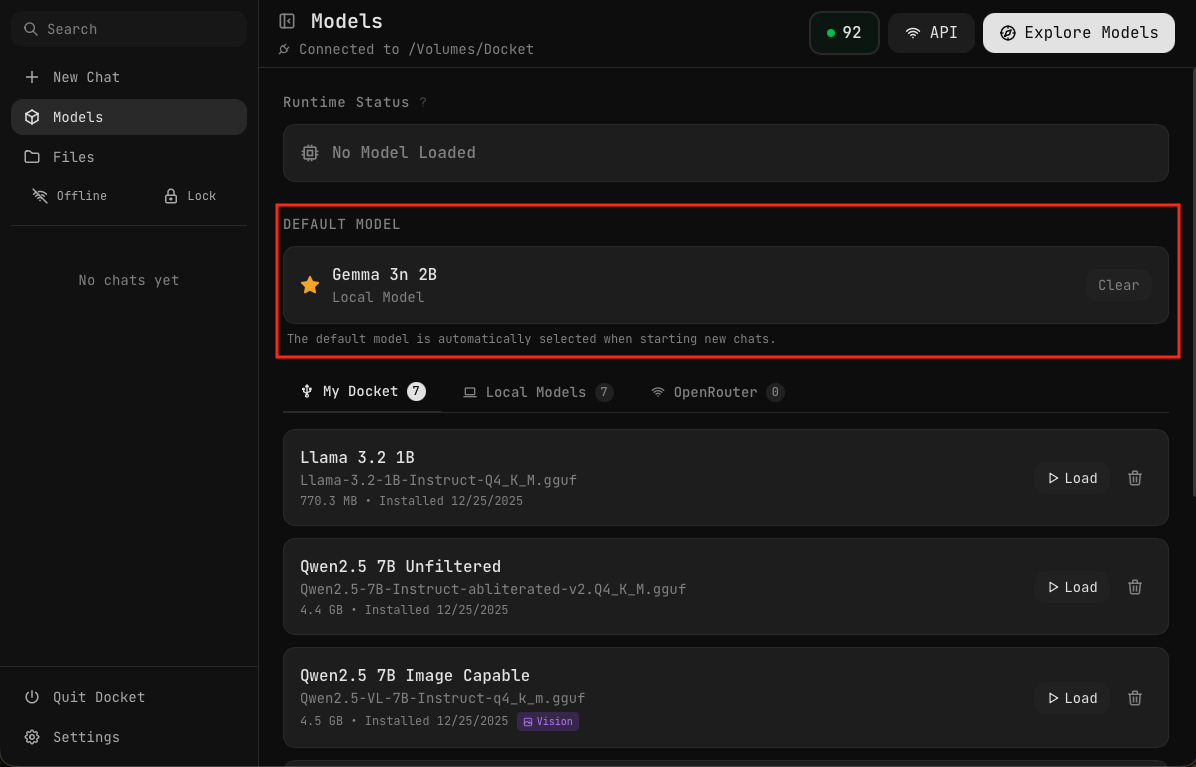
You can set a default model that automatically loads when starting new chats:
- Hover over any model in your list
- Click the star icon to set it as default
- The starred model appears in the "Default Model" section at the top
The default model is automatically selected when starting new chats, saving you time.
You can also rename models by hovering over them and clicking the edit icon.
Model States
| State | Meaning |
|---|---|
| Available | Ready to load |
| Loading | Currently loading into memory |
| Ready | Loaded and ready for chat |
| Error | Failed to load |
Managing Models
- Machine Specs — Check your AI capability score
- Pre-installed Models — What's included
- Hugging Face — Download new models
- OpenRouter — Use API models
- Host Models — Use models from your computer