File Storage Overview
Store and manage files securely on your Docket drive.
Accessing Files
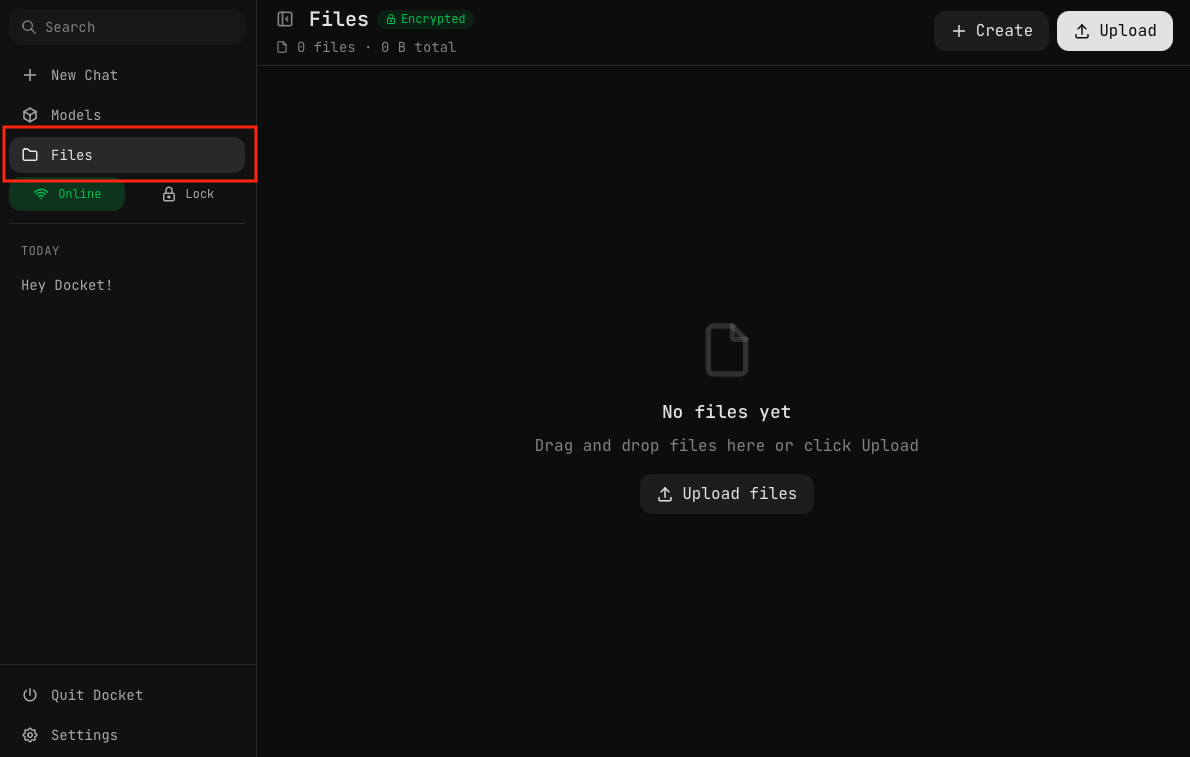
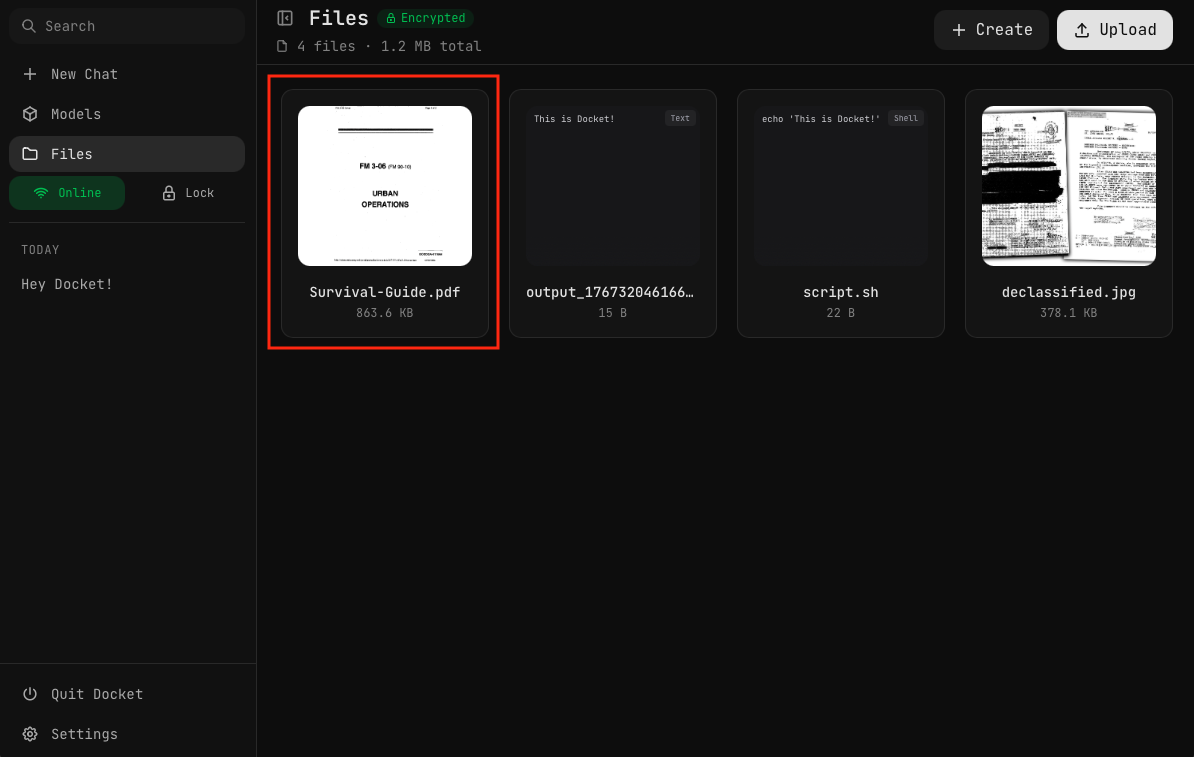
Click Files in the sidebar to open the file manager. The page shows:
- Encrypted badge — Indicates your files are protected
- File count and size — Total storage used
- Create button — Create new documents or scripts
- Upload button — Add files from your computer
Uploading Files
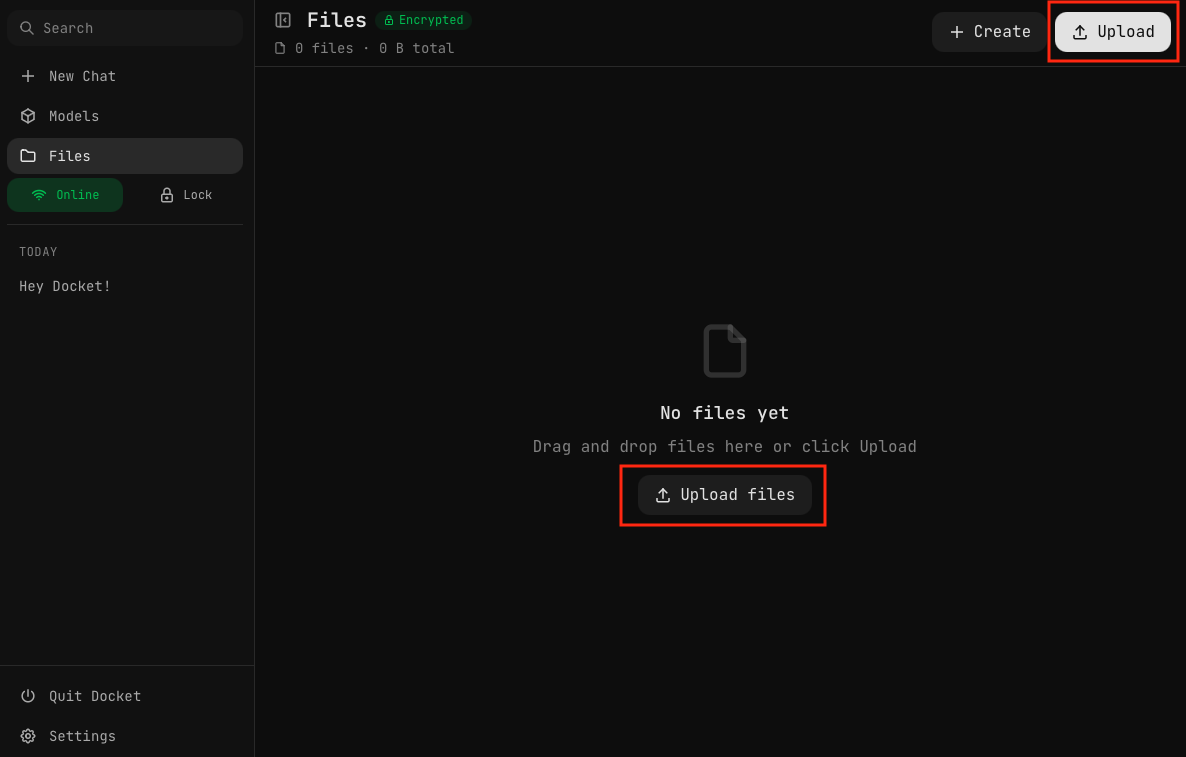
You can upload files by:
- Clicking the Upload button in the upper right
- Clicking Upload files in the center of the page
- Dragging and dropping files directly onto the page
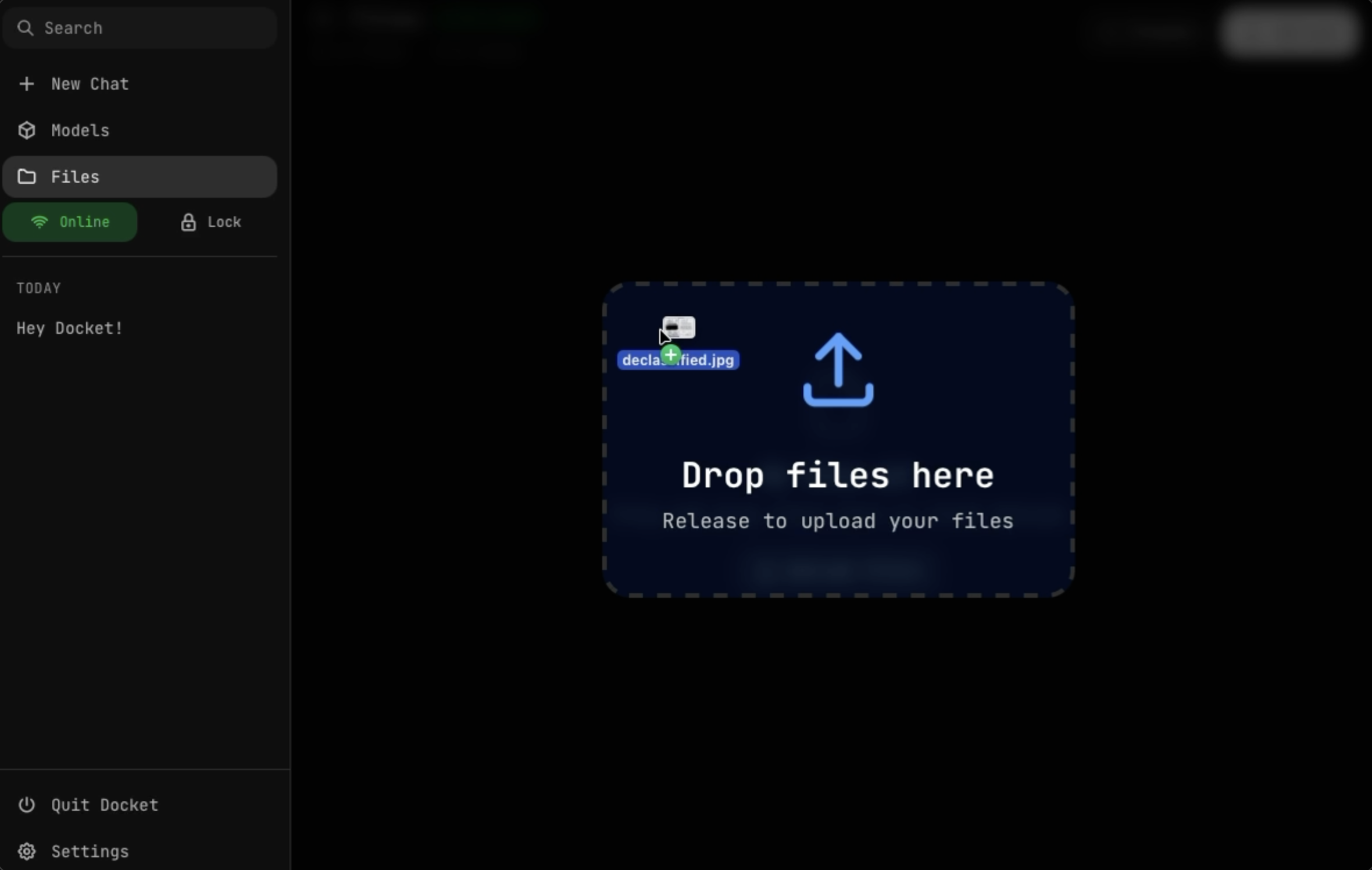
When you drag files over the page, a drop zone appears. Release to upload your files.
Viewing Files

Uploaded files appear in a grid showing:
- Thumbnail preview — For images and PDFs
- File name — Original or custom name
- File size — Storage used
File Preview
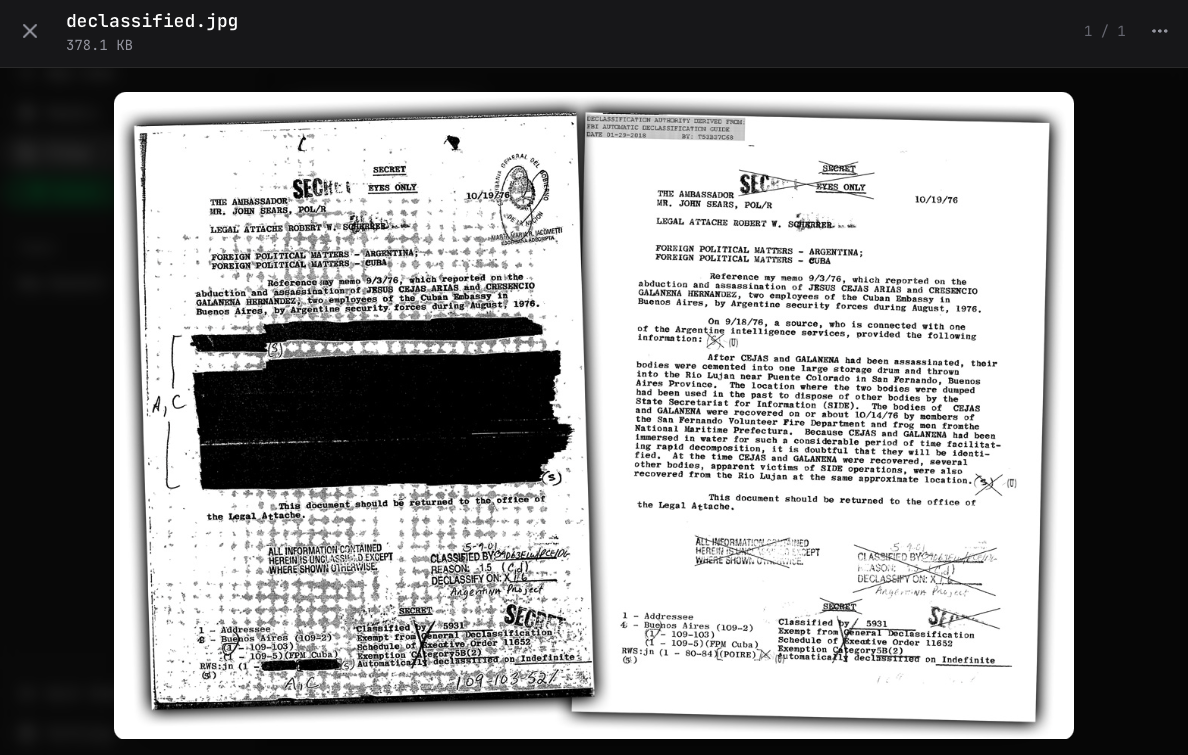
Click any file to open the full-screen viewer:
- Images — Full resolution with zoom
- PDFs — Page-by-page navigation
- Code — Syntax highlighting with line numbers
- Text — Plain text viewer
PDF Viewer
Docket includes a built-in PDF viewer for reading documents.

The PDF viewer supports:
- Multi-page navigation
- Page numbers and total count
- Full-screen reading
File Actions
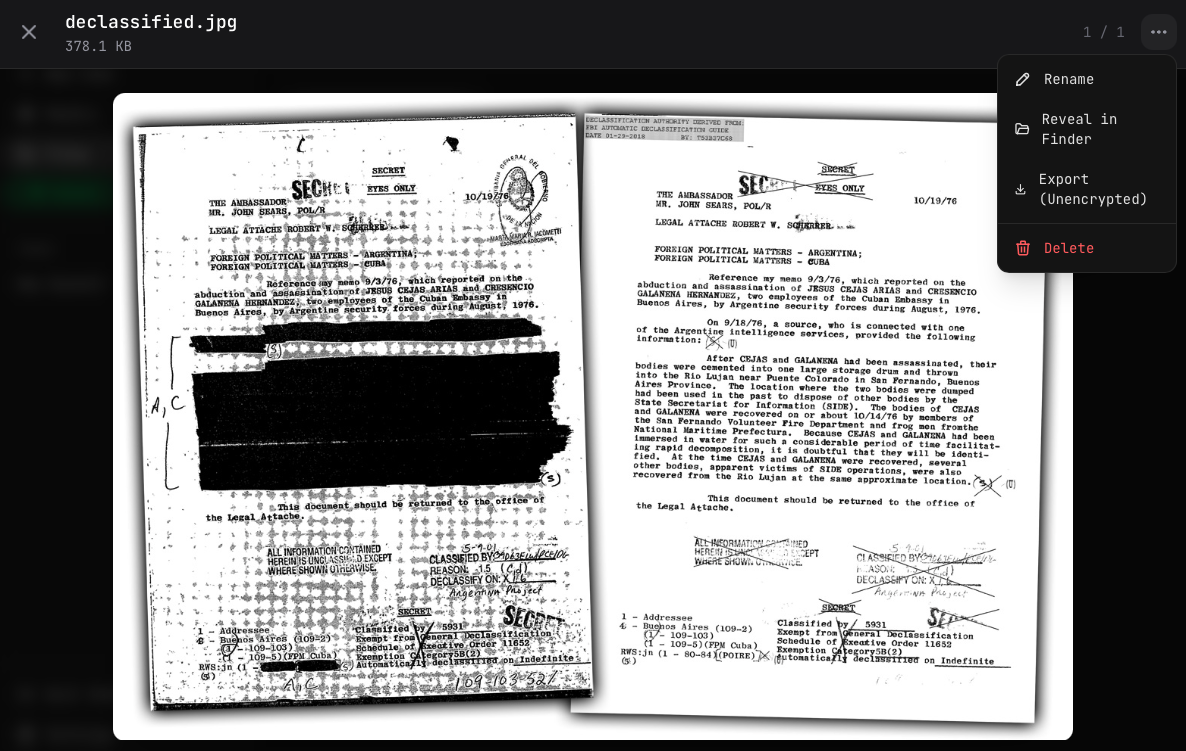
Click the menu icon (or right-click a file) for options:
| Action | Description |
|---|---|
| Rename | Change the file name |
| Reveal in Finder | Open in system file manager |
| Export (Unencrypted) | Save decrypted copy (see Exports) |
| Delete | Remove the file |
Supported File Types
Docket can store any file type, with special viewing support for:
- Images — PNG, JPG, GIF, WebP
- PDFs — Multi-page document viewer
- Code — Syntax highlighted viewer with editing
- Text — Plain text files
Encryption
When encryption is enabled:
- Files are encrypted with AES-256-GCM
- Original filenames are hidden (stored in database)
- File contents are protected at rest
- Only accessible when vault is unlocked
When encryption is disabled:
- Files are stored with original names
- No encryption overhead
- Files are accessible directly from the USB
See Encryption for details.
Dragging files directly onto the USB drive from your desktop is not the same as uploading through Docket. Files copied directly to the drive bypass Docket entirely and will not be encrypted, tracked, or protected. Always use the Files page in the app to upload files you want secured.
Storage Stats
View your storage usage in Settings:
- Total drive capacity
- Space used by models
- Space used by files
- Space used by chats
- Available space
Next Steps
- Uploading Files — Add files and create scripts
- Exporting Files — Share files with others