Uploading & Creating Files
Add files to your Docket or create new documents and scripts.
Upload Methods
Always upload files through the Docket app. Dragging files directly onto the USB drive from your desktop bypasses Docket and your files will not be encrypted or protected.
Drag and Drop
- Open the Files page
- Drag files from your computer
- Drop them on the file area
- Files are uploaded and encrypted (if encryption is enabled)
Click to Upload
- Open the Files page
- Click the Upload button
- Select files from the file picker
- Files are added to your storage
Creating Files
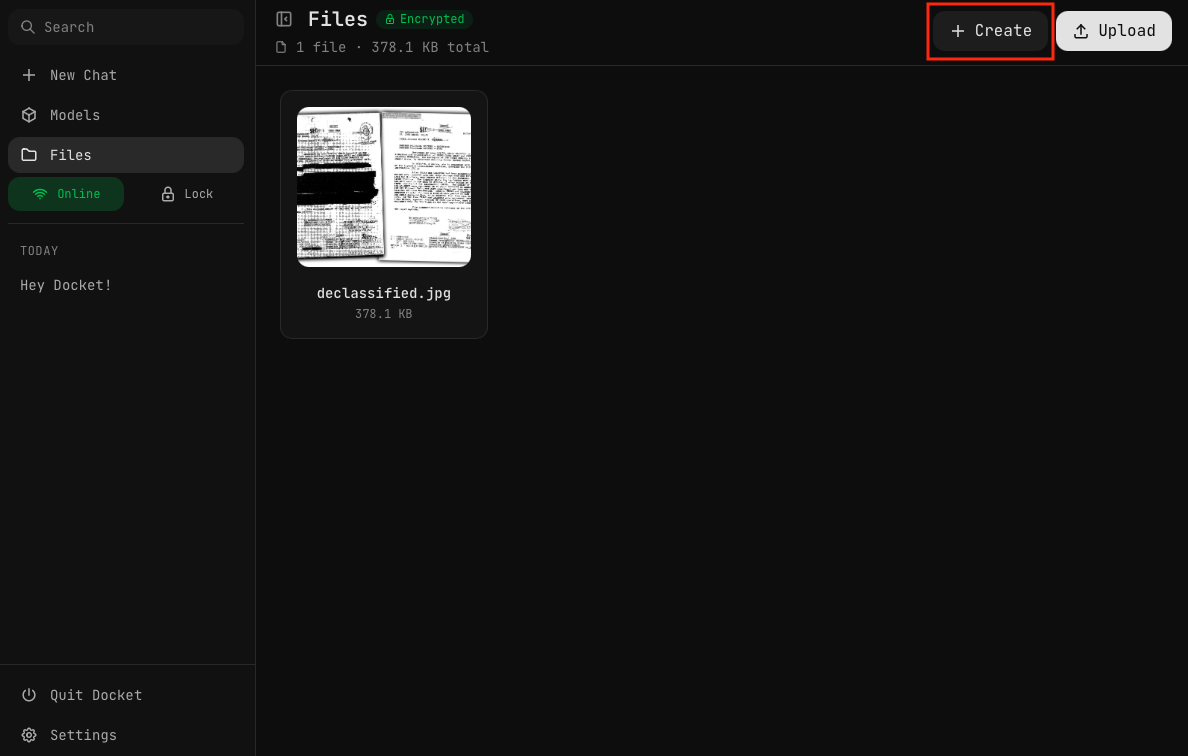
Click the Create button to make a new file directly in Docket.
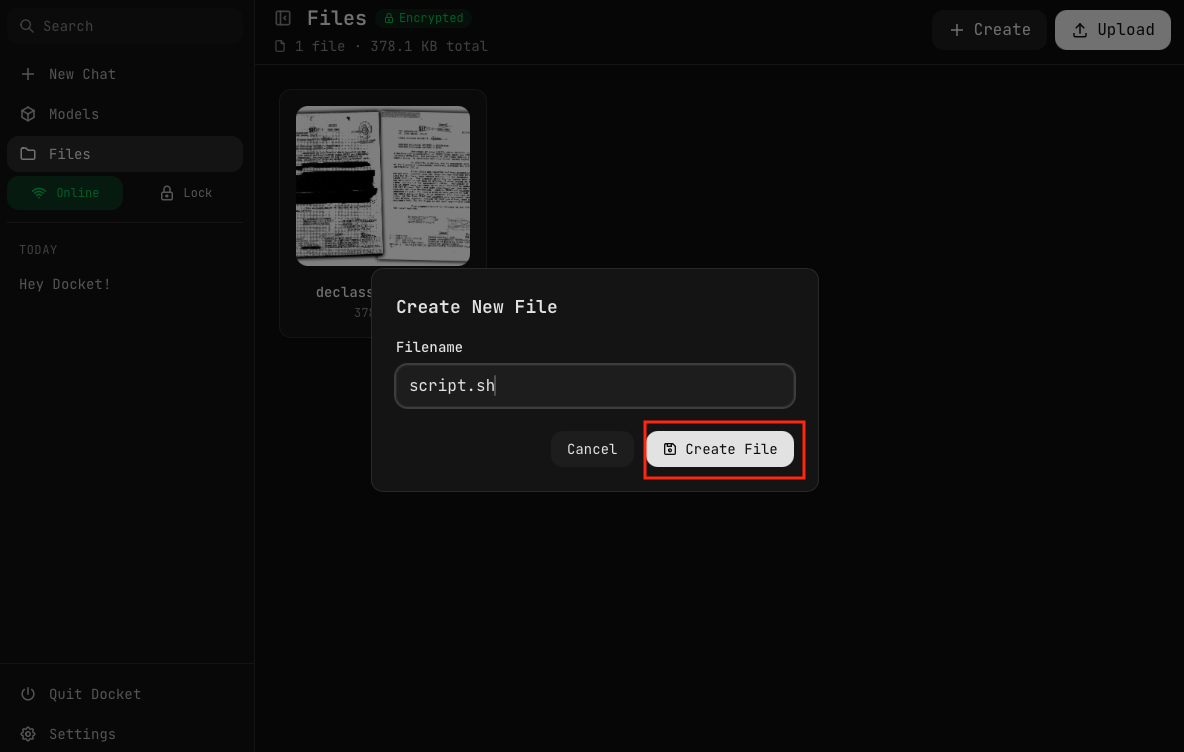
Enter a filename (including extension) and click Create File. Supported file types include:
.txt— Plain text documents.md— Markdown files.sh— Shell scripts.py— Python scripts.js— JavaScript files- And other code file types
Editing Files
The Code Editor
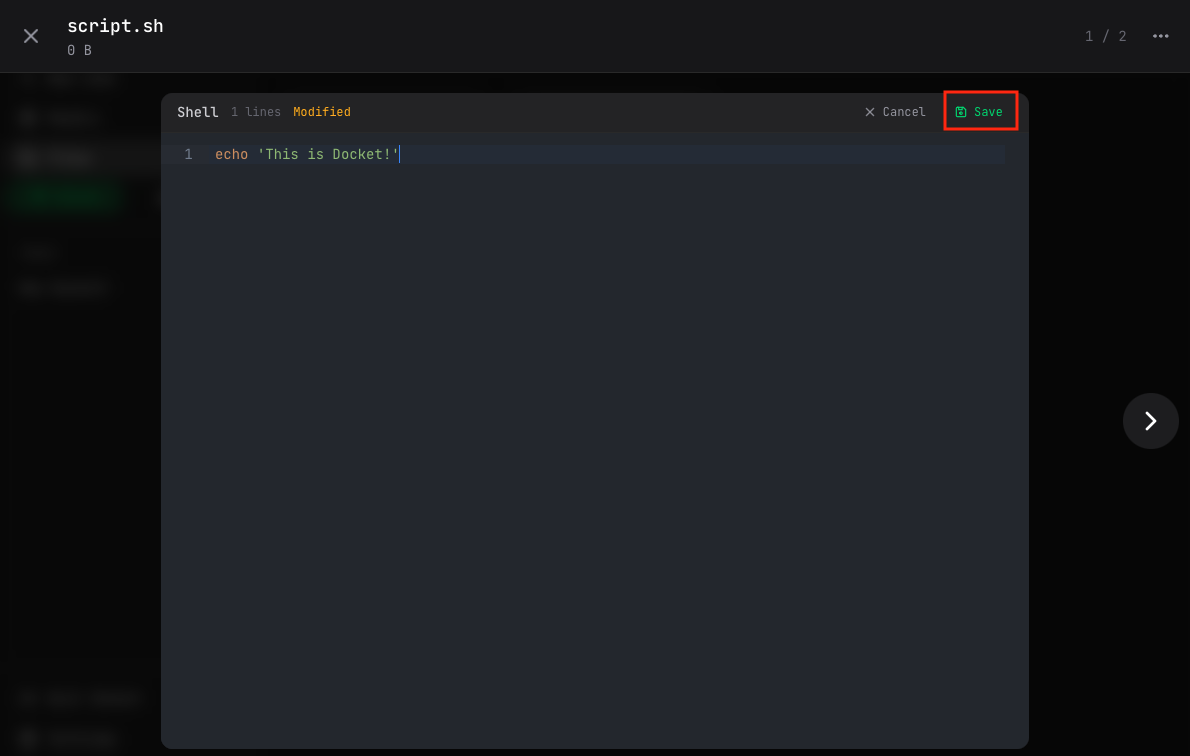
When you open a code or text file, Docket provides a built-in editor with:
- Syntax highlighting — Language-aware coloring
- Line numbers — Easy navigation
- Modified indicator — Shows unsaved changes
- Save button — Save your changes
Click Edit to modify the file, then Save when done.
Running Scripts
Docket can execute shell scripts and code files directly.
Running a Script

After saving a script file, click the Run button to execute it.
Execute Code Dialog
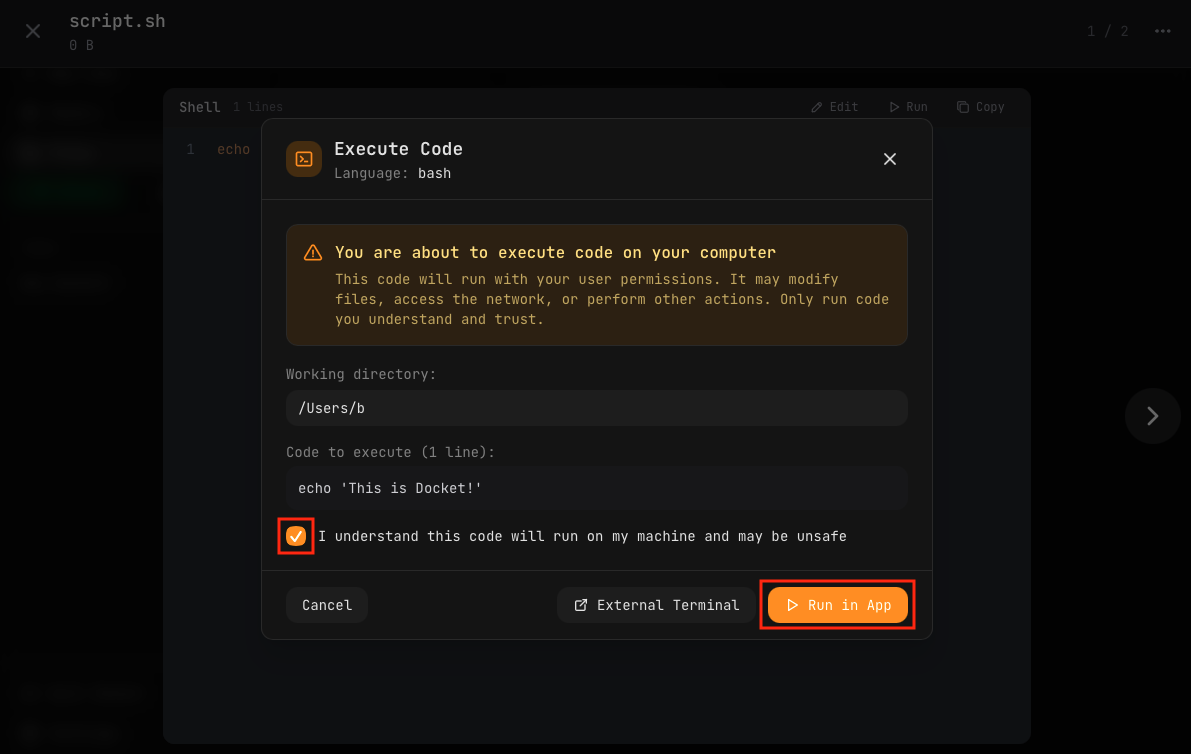
Before running, you'll see a confirmation dialog showing:
- Language — The detected script type (bash, python, etc.)
- Warning — Reminder that code runs with your permissions
- Working directory — Where the script will execute
- Code preview — The exact code that will run
- Confirmation checkbox — You must acknowledge the risk
Choose how to run the script:
- Run in App — Execute within Docket and see output
- External Terminal — Open in your system terminal
Only run scripts you understand and trust. Scripts have full access to your user permissions and can modify files, access the network, and perform other actions.
Script Output
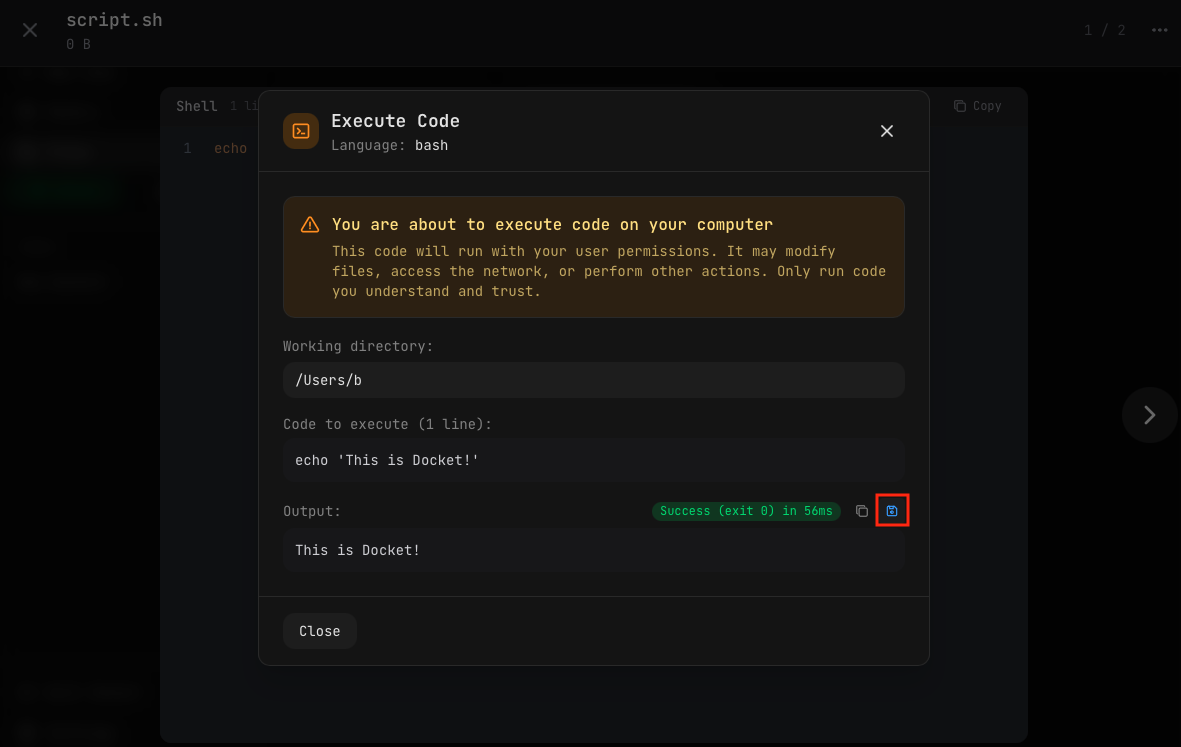
After running, you'll see:
- Exit status — Success or failure with exit code
- Execution time — How long it took
- Output — The script's output text
- Save button — Save the output as a new file
Click the save icon next to the output to save it to your Files for reference.
File Size Limits
- Individual files: No hard limit (depends on available space)
- Total storage: Limited by your Docket drive capacity (128GB)
Consider that AI models take significant space. Check Settings for current storage usage.
What Happens on Upload
With Encryption Enabled
- File is read into memory
- Random encryption key is generated
- File is encrypted with AES-256-GCM
- Encrypted file is saved with random filename
- Original filename and key stored in encrypted database
Without Encryption
- File is copied to storage
- Original filename is preserved
- File metadata stored in database
Organizing Files
Rename Files
- Right-click the file
- Select Rename
- Enter the new name
- Press Enter
Delete Files
- Right-click the file
- Select Delete
- Confirm deletion
Deleted files cannot be recovered. Ensure you have backups of important files.
Chat Image Attachments
When you attach images to chat messages:
- Images are automatically saved to storage
- Stored in
chat-images/subdirectory - Associated with the message in the database
- Persist across sessions
Tips
- Check available space before uploading large files
- Use descriptive names to find files easily
- Export important files as unencrypted backups
- Delete unused files to free up space
- Save script output to keep a record of executions