Downloading from Hugging Face
Add more models to your Docket from Hugging Face.
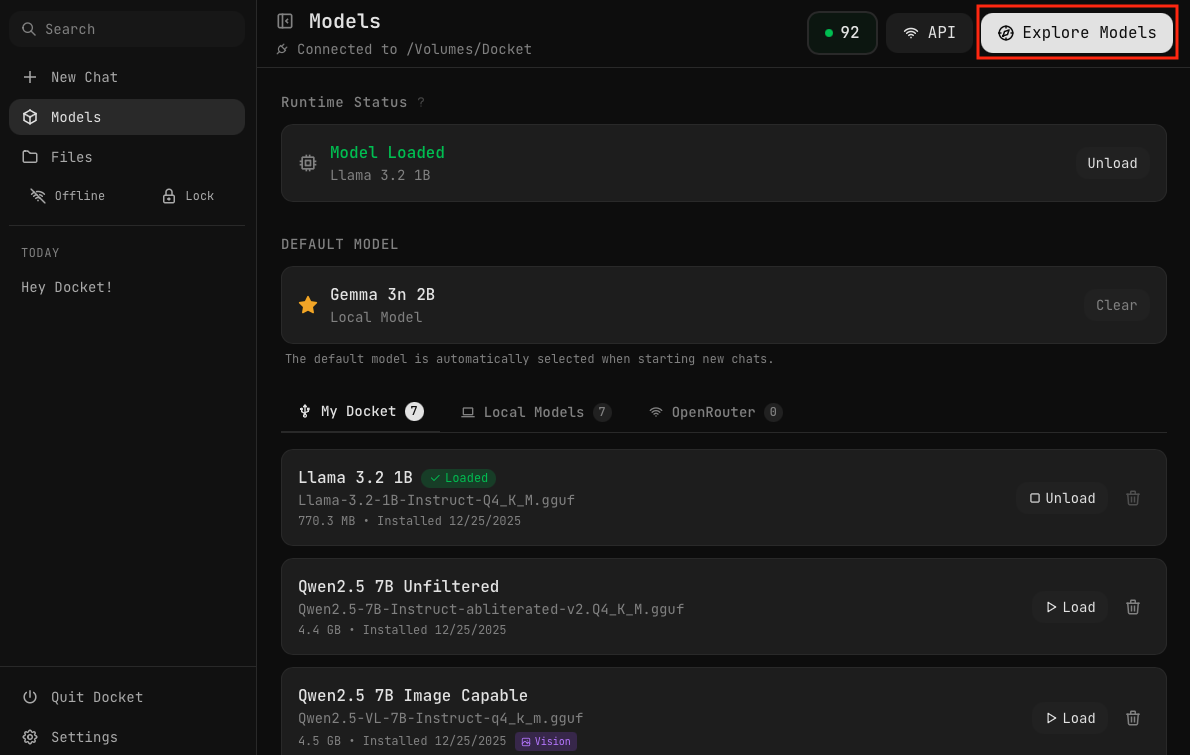
Click the "Explore Models" button in the upper right corner of the Models page to browse and download models from Hugging Face.
Downloading models from Hugging Face requires Online mode. Make sure the Offline toggle in the sidebar is set to Online before attempting to download.
Browsing Models
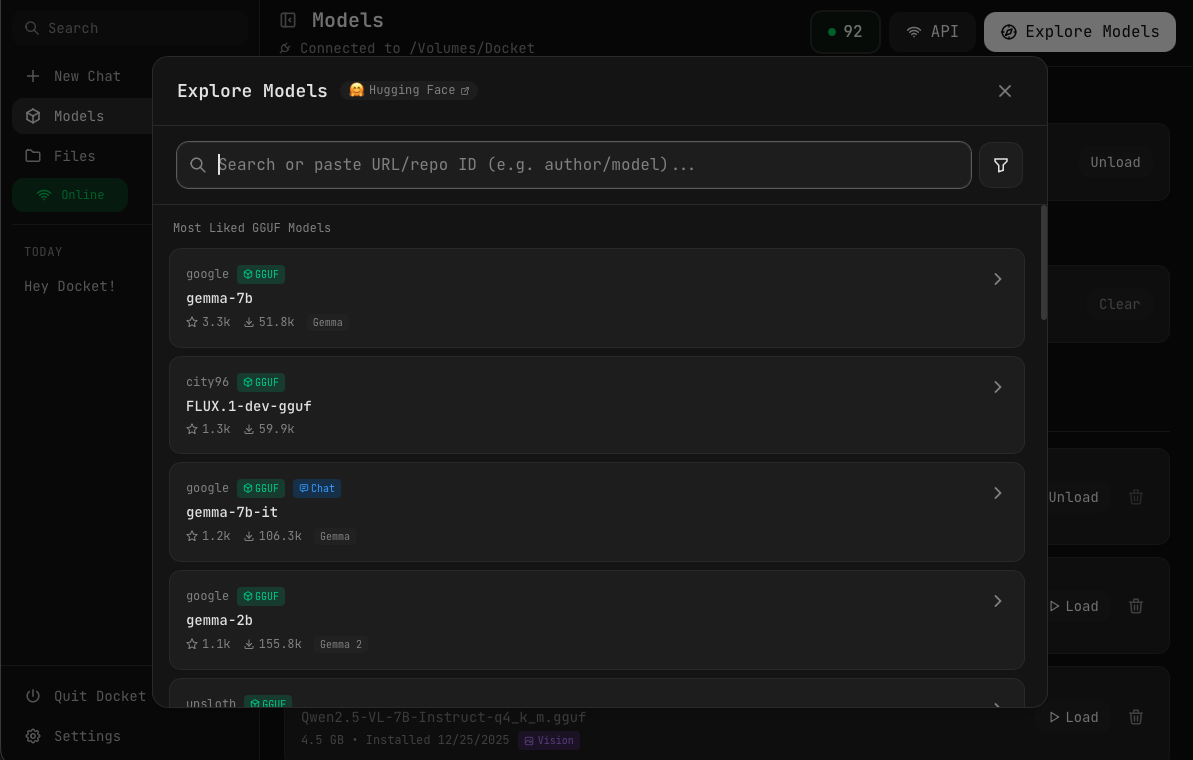
When you click "Explore Models", a modal opens where you can:
- Search for models by name
- Paste a URL or repo ID directly (e.g.
author/model) - Browse the most liked GGUF models
Filtering Models
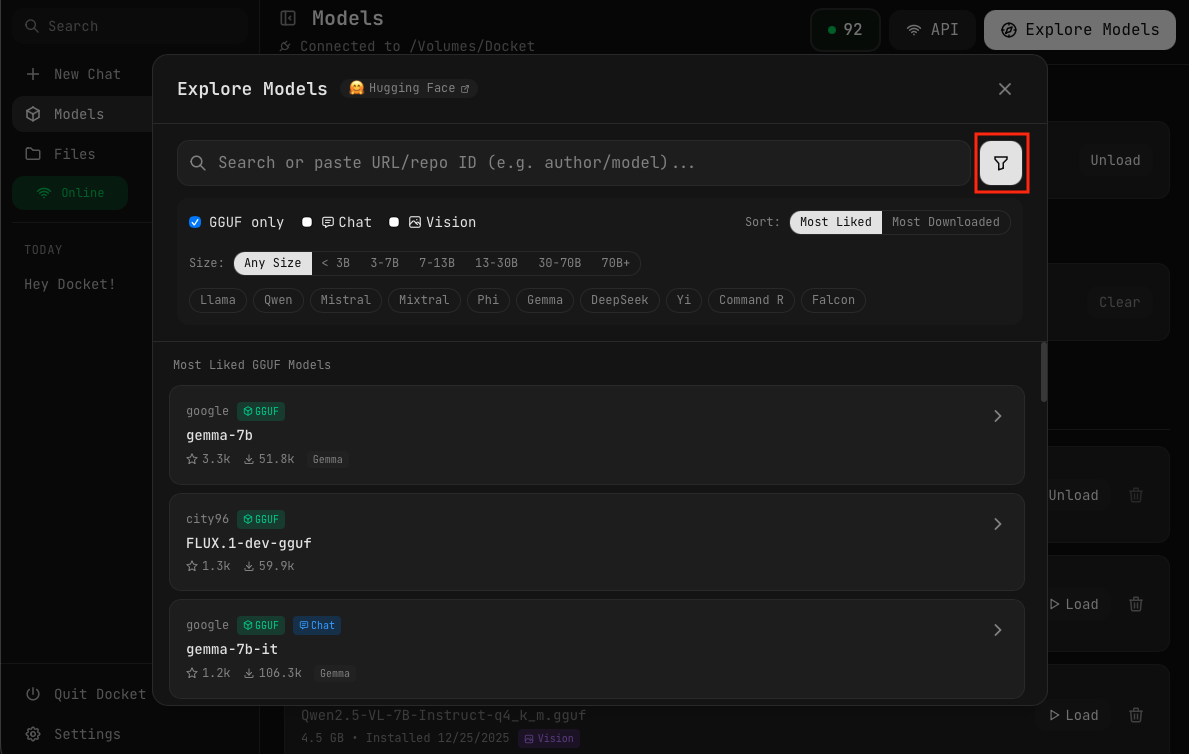
Click the filter icon to access sorting and filtering options:
- GGUF only — Show only compatible GGUF models
- Chat — Models optimized for conversation
- Vision — Models that can understand images
- Size — Filter by parameter count (< 3B, 3-7B, 7-13B, 13-30B, 30-70B, 70B+)
- Model family — Llama, Qwen, Mistral, Mixtral, Phi, Gemma, DeepSeek, Yi, Command R, Falcon
- Sort by — Most Liked or Most Downloaded
Model Details
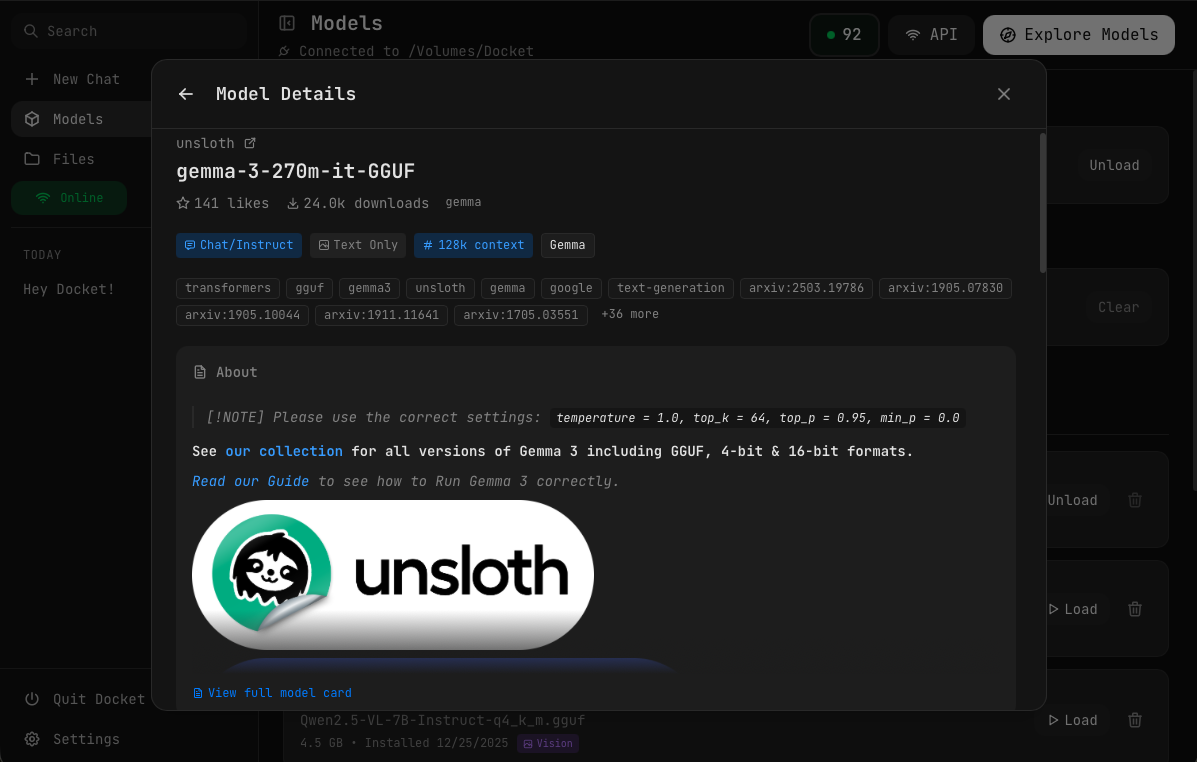
Click on any model to view its details page:
- Model name and author — With link to Hugging Face
- Likes and downloads — Popularity metrics
- Tags — Capabilities like Chat/Instruct, Text Only, context length
- Model family — Gemma, Llama, Qwen, etc.
- About section — Model description and recommended settings
- View full model card — Link to complete documentation on Hugging Face
Selecting a GGUF File
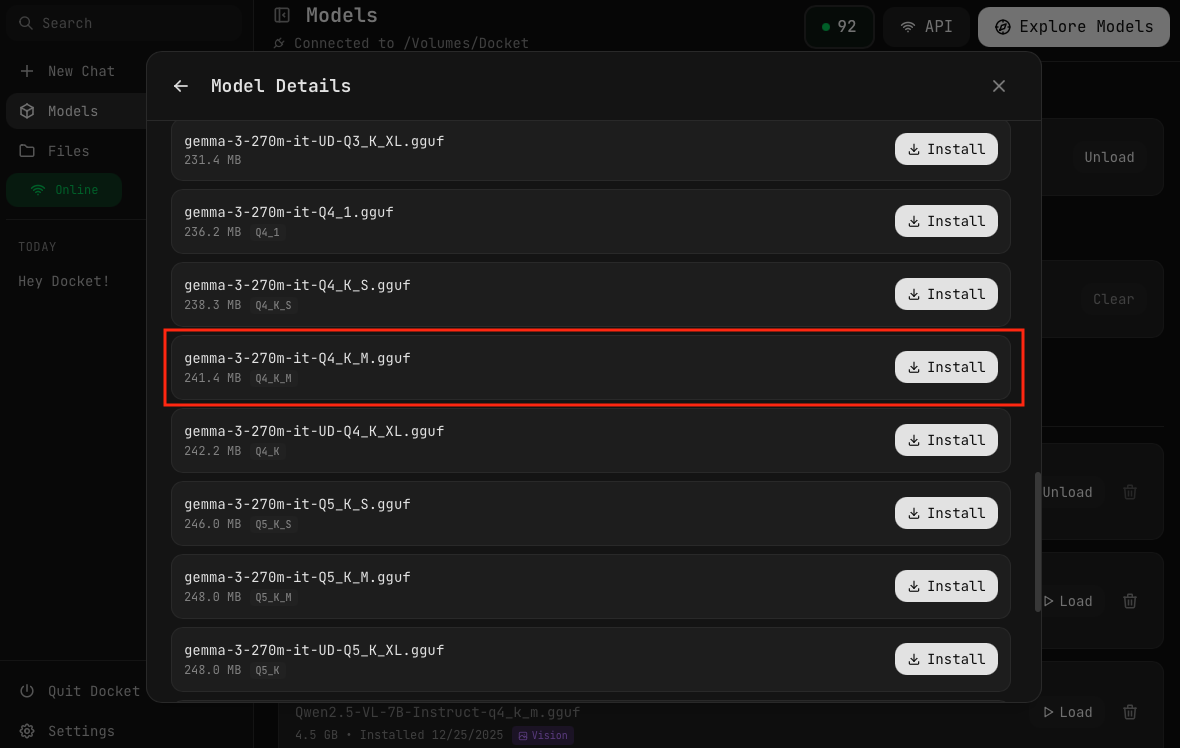
Scroll down to see all available GGUF files for the model. Each file shows:
- Filename — Including quantization type (Q4_K_M, Q5_K_S, etc.)
- File size — How much space it will use on your Docket
- Install button — Click to download
We recommend Q4_K_M quantization for most users. It offers the best balance of quality and file size — good enough for most tasks while keeping downloads manageable. Choose larger quantizations (Q5, Q6, Q8) only if you need maximum quality and have the storage space.
Vision-Capable Models
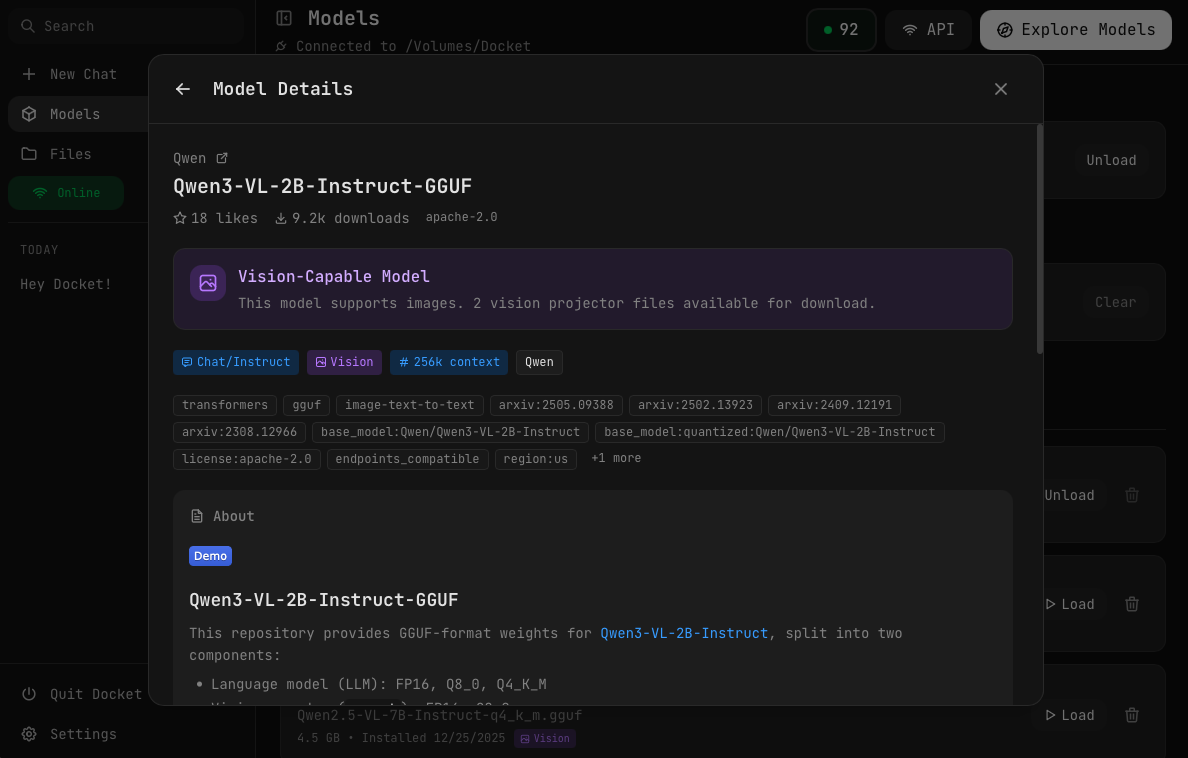
Some models support image understanding (vision). These are indicated by a "Vision-Capable Model" banner and a Vision tag on the model details page.
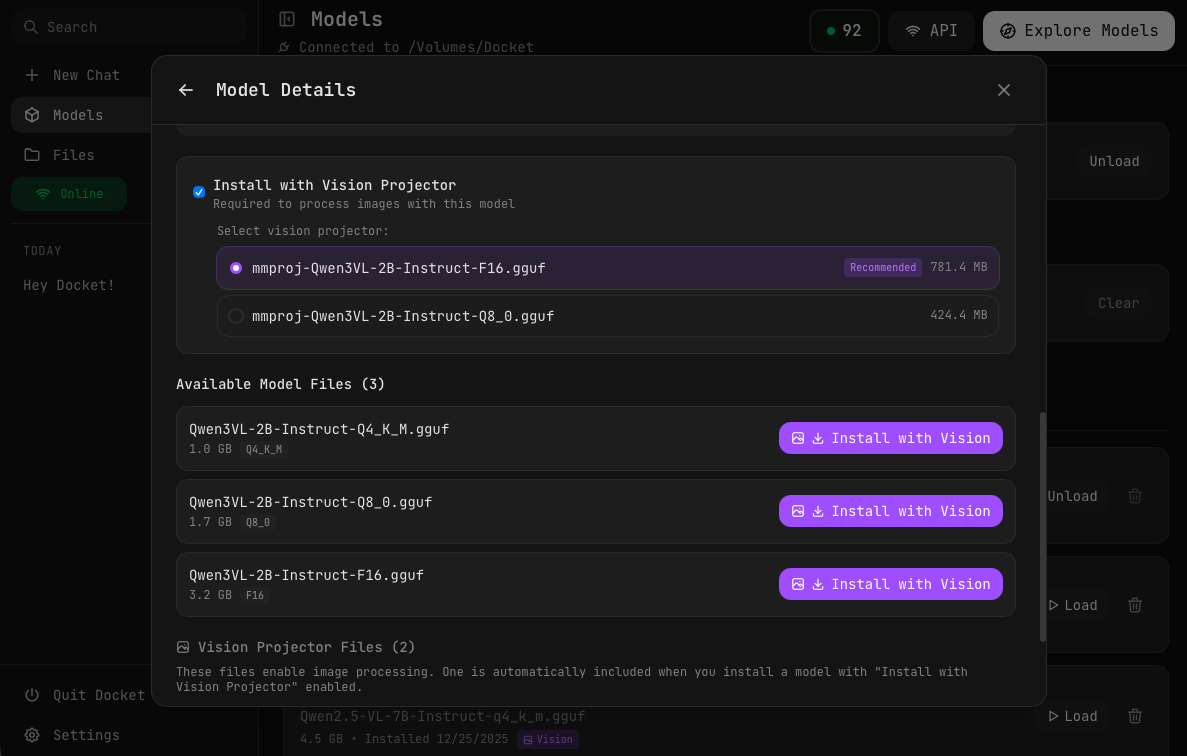
When installing a vision model:
- Install with Vision Projector — Check this option to enable image processing
- Select vision projector — Choose which mmproj file to download (Recommended is pre-selected)
- Install with Vision — Click to download both the model and its vision projector
The vision projector (mmproj) file is required for the model to process images. It's automatically bundled with your model when you select "Install with Vision".
Without the vision projector, the model will work for text-only conversations but won't be able to understand images you attach.
Downloading the Model
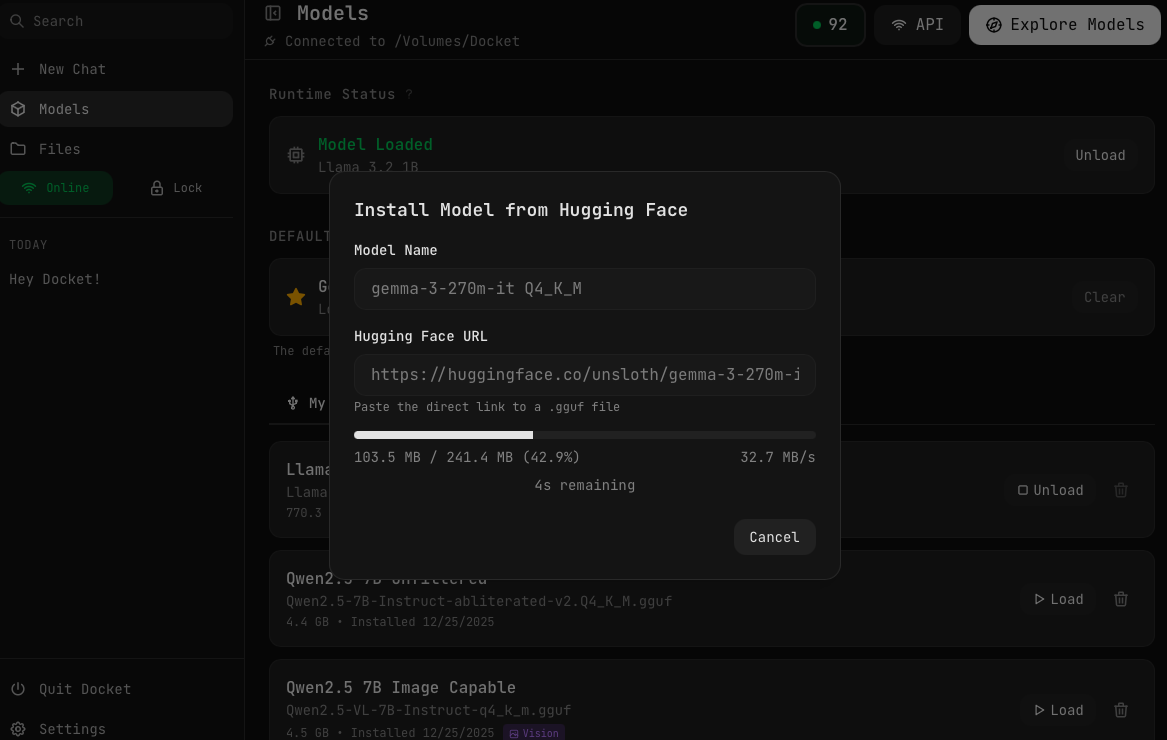
After clicking Install:
- Model Name — Customize the display name (auto-filled from file)
- Hugging Face URL — The direct download link (auto-filled)
- Progress — Watch the download progress with speed and time remaining
- Cancel — Stop the download if needed
Once complete, the model appears in your "My Docket" tab and is ready to load.
What are GGUF Models?
GGUF (GPT-Generated Unified Format) is the file format used by llama.cpp, which powers Docket's local inference. Docket's built-in explorer automatically filters for GGUF models, so you'll only see compatible files.
Recommended Model Sources
These publishers consistently provide high-quality GGUF conversions:
| Publisher | Known For |
|---|---|
| Unsloth | Optimized, fast GGUF models with excellent quality |
| bartowski | High-quality conversions of popular models |
| TheBloke | Extensive library of quantized models |
| QuantFactory | Wide variety of model formats |
Quantization Reference
When selecting a GGUF file, you'll see different quantization levels:
| Quantization | Size | Quality | Best For |
|---|---|---|---|
| Q2_K | Smallest | Lower | Testing, very limited storage |
| Q3_K_M | Small | Moderate | Low memory systems |
| Q4_K_M | Medium | Good | Most users (recommended) |
| Q5_K_M | Large | Better | Quality-focused use |
| Q6_K | Larger | High | Near-original quality |
| Q8_0 | Largest | Highest | Maximum quality |
Managing Downloaded Models
View Models
Downloaded models appear in the "My Docket" tab in the Models section.
Delete Models
- Click on the model
- Click "Delete"
- Confirm deletion
The model file is removed from your Docket drive.
Troubleshooting
Download Fails
- Check your internet connection
- Ensure network access is enabled in Docket
- Verify the URL is correct
- Check available space on your Docket
Model Won't Load
- Ensure you have enough RAM
- Try a smaller quantization
- Check if the file downloaded completely
Invalid URL
- URL must end in
.gguf - Must be a direct download link
- Must be from huggingface.co