Chat Settings
Customize how AI models respond to your messages.
Accessing Chat Settings
Click the "Chat Settings" button in the upper right corner of the chat interface (not the Settings option in the sidebar — that's for app-wide settings).
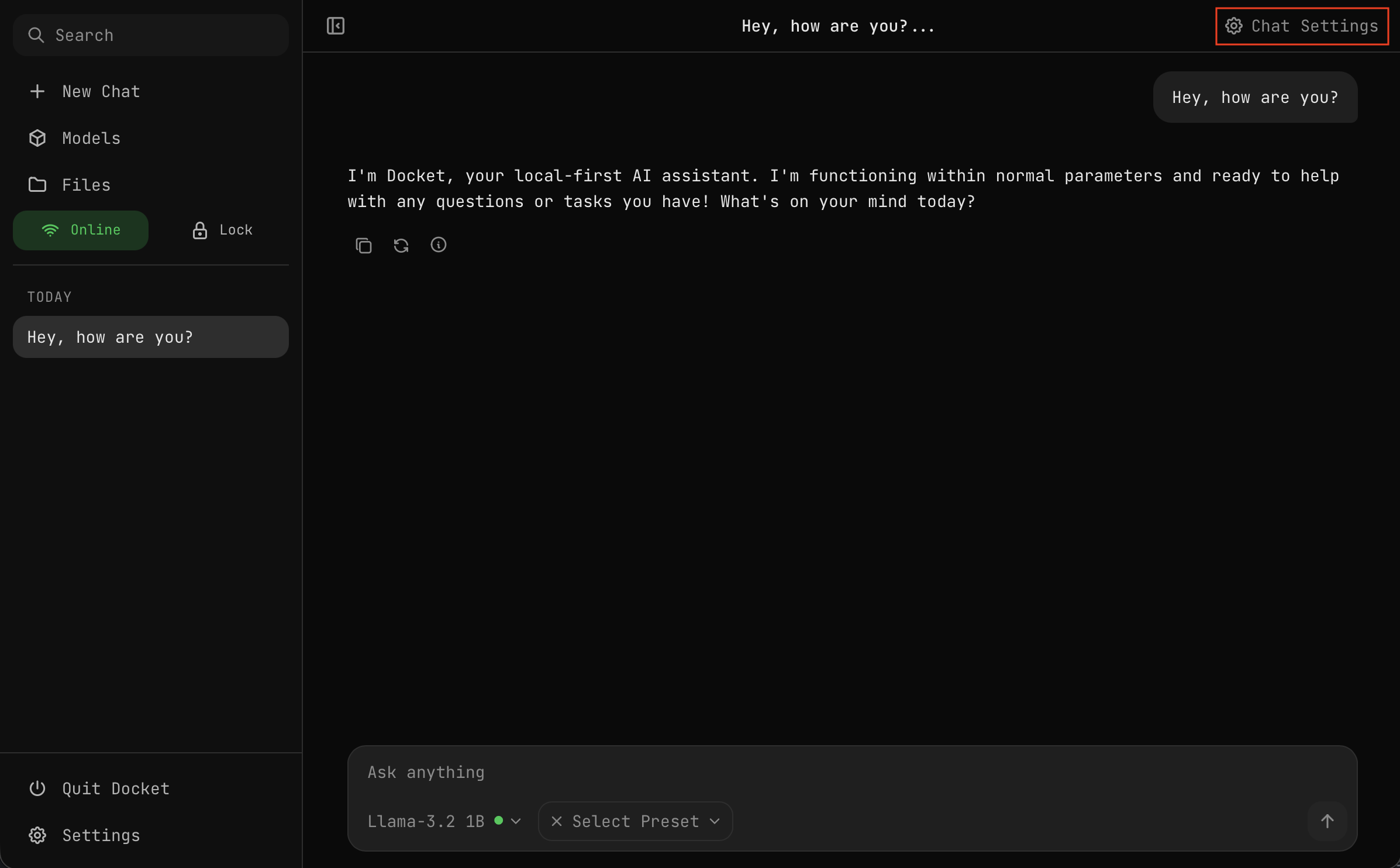
Click the reset icon in the upper right corner of the Chat Settings panel to reset all settings to their default values.
Inference Parameters
Temperature
Controls randomness in responses.
| Value | Effect |
|---|---|
| 0.0 | Deterministic, focused responses |
| 0.7 | Balanced (default) |
| 1.0+ | Creative, varied responses |
Use lower temperature for:
- Code generation
- Factual questions
- Consistent outputs
Use higher temperature for:
- Creative writing
- Brainstorming
- Varied suggestions
Max Tokens
Maximum length of the AI response.
- Default: 2048 tokens
- Range: 128 - 4096 tokens
- Note: Longer responses take more time to generate
Top P (Nucleus Sampling)
Controls diversity by limiting token selection to top probability mass.
- Default: 0.9
- Range: 0.0 - 1.0
- Lower values = more focused responses
Repeat Penalty
Reduces repetition in responses.
- Default: 1.1
- Range: 1.0 - 2.0
- Higher values = less repetition
System Prompt
Set a custom system prompt to guide the AI's behavior:
You are a helpful coding assistant.
Respond with clear, well-commented code.
Explain your reasoning step by step.
The system prompt is sent with every message to maintain context.
System Info
Enable the System Info toggle to give the AI model awareness of your Docket environment, including the workspace folder.
What is the Workspace?
The workspace is a folder at the root of your Docket drive where AI models can create, save, and reference files. When System Info is enabled, you can:
- Save outputs — Ask the model to save code, documents, or data to the workspace
- Reference files — Place files in the workspace and ask the model to read or work with them
- Create folders — Have the model organize outputs into project structures
Example Usage
Save this script to the workspace as "backup.py"
Read the notes.txt file in my workspace and summarize it
Create a folder called "project" in my workspace with src and tests subfolders
Enable System Info when you want the AI to save outputs or work with files on your Docket drive. The workspace folder is unencrypted so the AI can access it directly.
Presets
Save your favorite settings as presets:
Built-in Presets
| Preset | Description |
|---|---|
| Coder | Optimized for programming and code generation |
| Creative | Higher temperature for creative writing and brainstorming |
| Docket | Default balanced settings for general use |
| Minimal | Concise, to-the-point responses |
| Planner | Structured planning and task organization |
| Research | Detailed, thorough responses for research tasks |
| Survival | Practical, actionable guidance |
| Writer | Long-form writing assistance |
Creating Presets

- Adjust settings to your preference
- Click "Save As"
- Enter a name for your preset
- Your preset appears in the preset selector
Using Presets
There are two ways to select a preset:
From the chat input bar:
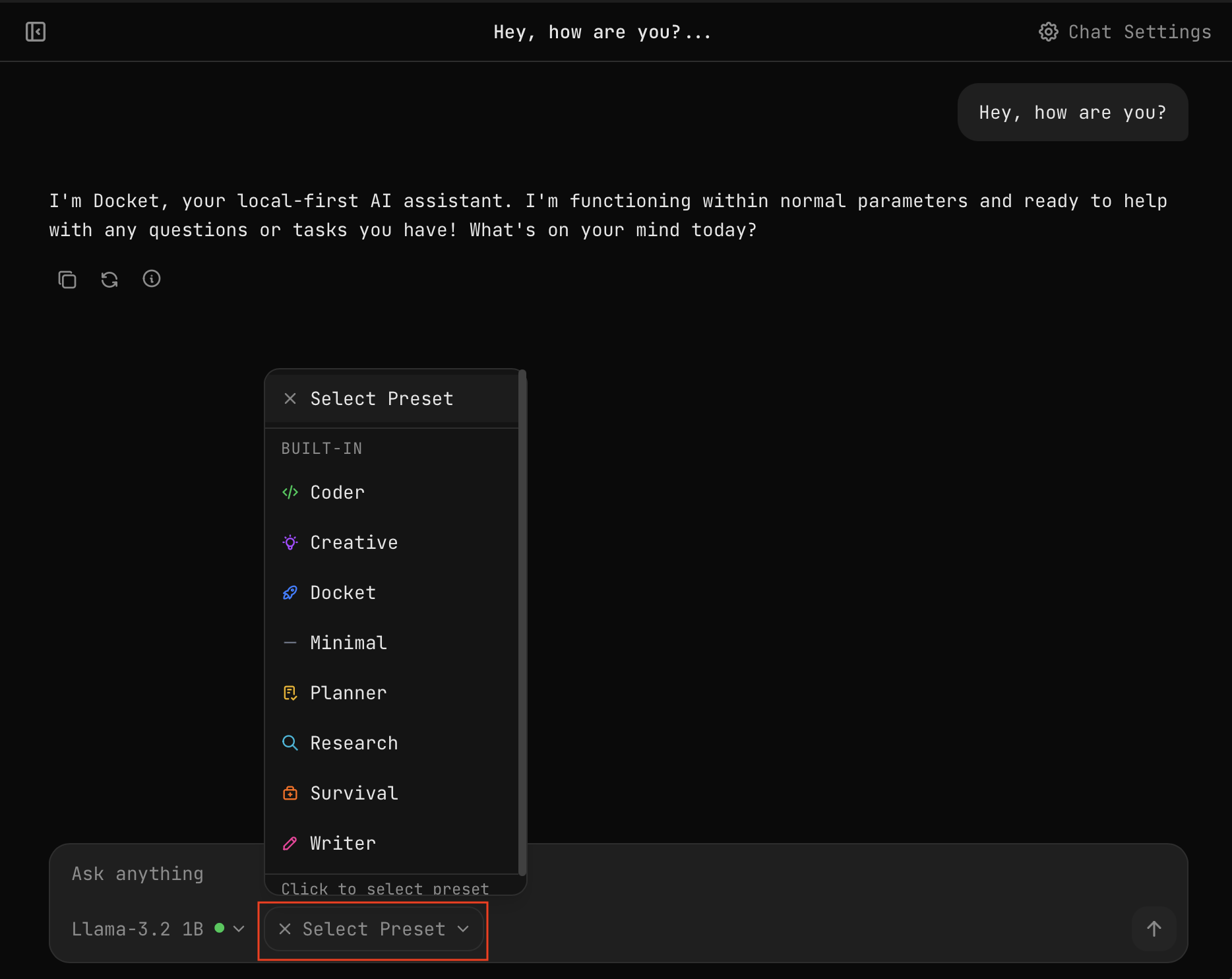
Click the preset dropdown next to the model selector and choose a preset.
From Chat Settings:
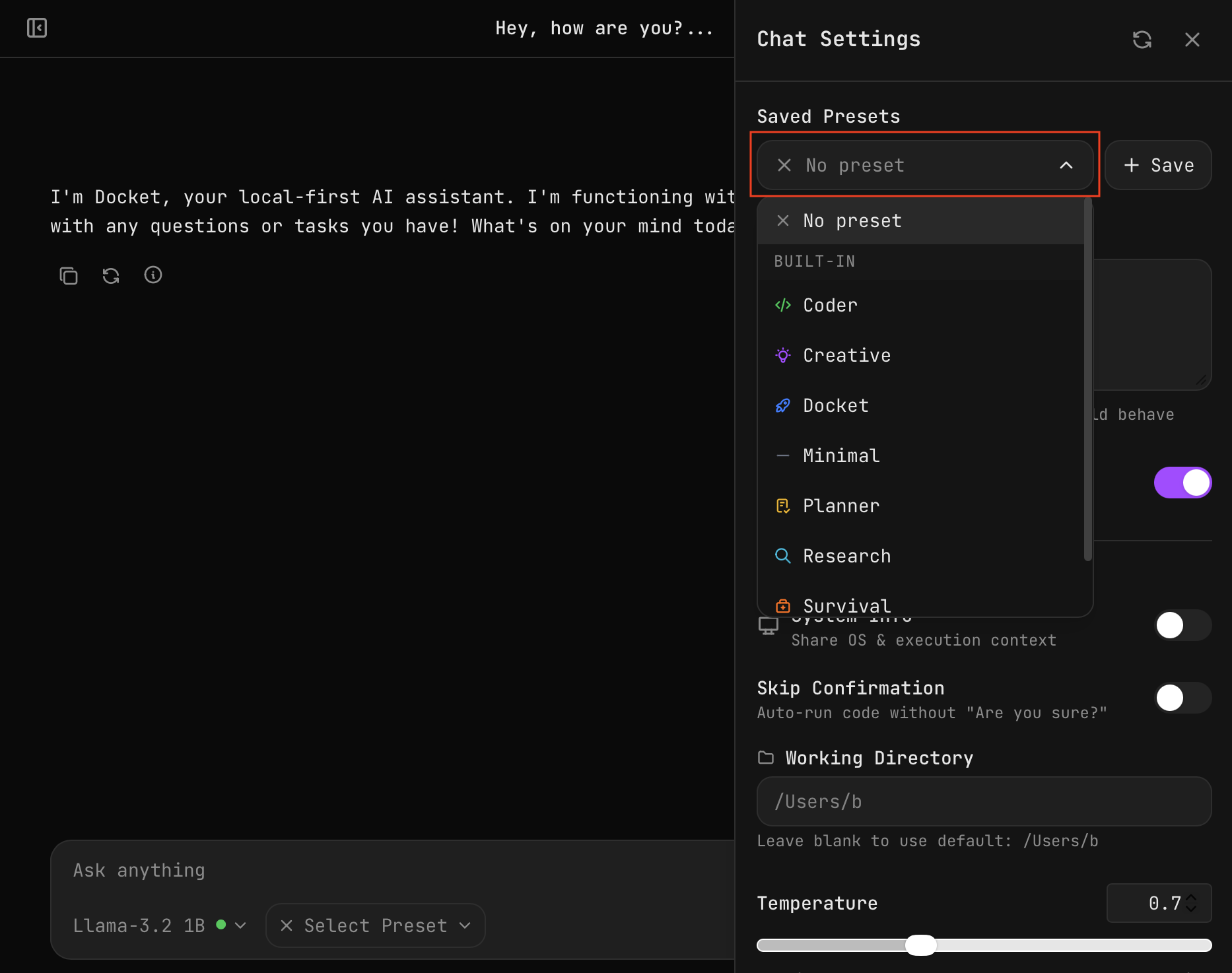
Open Chat Settings and select a preset from the dropdown menu.
Settings are applied immediately with either method.
Starring Presets
Star a preset to make it the default when you open Docket:
- Hover over a preset
- Click the star icon
- The starred preset loads on app start
Code Execution Settings
Skip Confirmation
Toggle to run code blocks without the confirmation dialog.
Only enable this if you trust all code generated by your AI models.
Working Directory
Set the default directory for code execution:
- Defaults to your home directory
- Can be set to any accessible path
- Code runs in this directory context
Next Steps
- Model Overview — Choose the right model
- Security Settings — Protect your data